DNS has carried our most basic network lookups in cleartext for its entire life. On June 9, 2026, Microsoft moved DNS over HTTPS for the Windows DNS Server role to general availability, shipping it in the June cumulative update (KB5094125) for Windows Server 2025. That means the encrypted, authenticated client-to-resolver path that used to require a separate appliance or a public resolver now lives inside the DNS role you already run.
I rolled it out across three domain controllers a few nights after it went GA and ran a full verification pass rather than just trusting the switch. This post is that deployment, start to finish, with the evidence that proves it is genuinely encrypting traffic. It also covers the three things the official walkthrough does not warn you about: a certificate enrollment trap, a verification command that will quietly lie to you about whether DoH is working, and a Settings page that insists DoH is off when it is actually on.
What this does, and what it does not
DoH encapsulates DNS queries and responses inside HTTPS, encrypted with TLS, and uses the server certificate to authenticate the resolver to the client. The practical wins are the obvious ones: queries are no longer readable by anyone passively watching the wire, and a client can verify it is talking to the resolver it expects rather than an impostor.
So calibrate your expectations accordingly. You are encrypting the hop between your clients and your DNS servers. You are not, with this feature, encrypting the path from your DNS servers out to the internet. If that external hop matters to you, it likely needs a separate mechanism (an encrypted forwarder, for example). In my own environment that outbound hop was already encrypted by the forwarders, so this release closed the one internal leg that was still in the clear.
Prerequisites
- Windows Server 2025 with the June 2026 cumulative update (
KB5094125) or later. The DoH role surface does not exist on earlier builds. - A certificate on each DNS server that meets four requirements: a Server Authentication EKU (
1.3.6.1.5.5.7.3.1), a Subject Alternative Name matching the hostname or IP you will put in the DoH URI template, a private key present in the Local Computer store, and issuance from a CA that both the DNS server and the clients trust. An internal enterprise CA makes this trivial, but a public certificate works just as well. - A firewall rule allowing inbound TCP 443 on each DNS server.
- Administrative access to each DNS server.
The deployment, step by step
I worked one server at a time and fully verified each before moving to the next. If your DNS servers are domain controllers, do the one holding the most fragile dependencies last, since the DNS service restart at the end briefly interrupts resolution on that box.
1. Get a certificate onto each DNS server
There is a subtlety here that bites people, covered in the first gotcha below. The short version: if you want the private key created directly in the machine store and never written to disk, request it on the server in the machine context. With an enterprise CA and a published server-auth template, that is a one-liner:
Get-Certificate -Template WebServer `
  -SubjectName "CN=dc01.corp.example.com" `
  -DnsName "dc01.corp.example.com" `
  -CertStoreLocation Cert:\LocalMachine\My
Confirm the result has the private key and the right SAN:
Get-ChildItem Cert:\LocalMachine\My |
  Where-Object Subject -match "corp.example.com" |
  Select-Object Subject, Thumbprint, NotAfter, HasPrivateKey,
    @{n='SAN';e={($_.Extensions | Where-Object {$_.Oid.FriendlyName -eq 'Subject Alternative Name'}).Format(0)}}
You want HasPrivateKey set to True and the SAN showing the FQDN you will use in the URI template.
2. Bind the certificate to the HTTPS listener
$guid = New-Guid
netsh http add sslcert ipport=0.0.0.0:443 `
  certhash=<your-cert-thumbprint> appid="{$guid}"
If you would rather DoH answer on one specific address instead of all of them, replace 0.0.0.0 with that IP. It has to match, or resolve to, the host in your certificate SAN. Confirm the binding landed:
netsh http show sslcert
A quick note in case you see it: if netsh returns Error 183, “Cannot create a file when that file already exists,” it simply means a binding on that address and port is already present. The operation is idempotent, so a re-run reports the existing binding rather than breaking anything.
3. Allow inbound TCP 443
New-NetFirewallRule -DisplayName "DNS over HTTPS" -Direction Inbound `
  -Protocol TCP -LocalPort 443 -Action Allow
If you bound DoH to a non-default port, substitute it here, and remember any upstream hardware firewall needs the same allowance.
4. Enable DoH and set the URI template
Set-DnsServerEncryptionProtocol -EnableDoh $true `
  -UriTemplate "https://dc01.corp.example.com:443/dns-query"

Restart-Service -Name DNS
The port in the URI template has to match the port you bound the certificate to.
5. Verify the listener actually started
Start-Sleep -Seconds 5
Get-DnsServerEncryptionProtocol
You want EnableDoh set to True with your URI template echoed back. The Start-Sleep is not decoration. Query that cmdlet within about a second of the DNS restart and it throws a WIN32 21 (ERROR_NOT_READY), because the management provider has not finished coming back up. Give it a few seconds and it answers cleanly.
The authoritative confirmation is in the event log. Open Event Viewer, go to Applications and Services Logs, then DNS Server, and look for Event 822:
Id          : 822
Message     : Successfully started HTTP server for DNS-over-HTTPS (DoH) server.
              The DoH server is listening on following URL(s):
              https://dc01.corp.example.com:443/dns-query
Event 822 is the line that separates “configuration accepted” from “HTTPS listener actually running.” If you see events in the 823 to 826 range instead, those are initialization failures, and the error code in the message is where to start.
Across all three servers the listener came up clean:
| DNS server | URI template | Listener (Event 822) |
|---|---|---|
| DC01 10.0.0.10 · primary, PDC emulator |
https://dc01.corp.example.com:443/dns-query | CONFIRMED |
| DC02 10.0.0.11 · secondary |
https://dc02.corp.example.com:443/dns-query | CONFIRMED |
| DC03 10.0.0.12 · Server Core |
https://dc03.corp.example.com:443/dns-query | CONFIRMED |
Cert:\LocalMachine\My runs the enrollment in the context of the machine account (for example, DC01$), not your user account. The stock Web Server template grants Enroll only to Domain Admins and Enterprise Admins, so the machine account is not on the list, and every request comes back with:
CertEnroll::CX509Enrollment::Enroll: You do not have permission to request
this type of certificate. 0x80094012 (CERTSRV_E_TEMPLATE_DENIED)
certutil -pulse on that server and retry.
Configuring a client
The server side answering DoH does nothing on its own. DoH is opt-in on the client, and the client will keep using plaintext 53 until you tell it otherwise. There is also a gate: a Windows client will only use DoH for a DNS server that is on its list of known DoH servers. The public resolvers ship on that list by default, but your own servers do not, so you register them first.
Add-DnsClientDohServerAddress -ServerAddress '10.0.0.10' `
  -DohTemplate 'https://dc01.corp.example.com/dns-query' `
  -AllowFallbackToUdp $True -AutoUpgrade $True
# repeat for each DNS server (DC02, DC03, ...)
That is all the client needs. Those entries, with AutoUpgrade set to True, are what actually upgrade your queries to DoH, and ipconfig /all will now annotate each server with its template and fallback state as confirmation. You can also configure this through the Settings GUI instead of PowerShell, but the way the GUI and PowerShell relate to each other has a genuinely confusing catch that deserves its own treatment. If you configure with PowerShell as shown here, do not be alarmed when the Settings page still shows the servers as unencrypted. That is expected, and a dedicated section below explains exactly why, and what each GUI option does if you decide to change it.
DNS Servers . . . . . . . . . . . : 10.0.0.10
                                      DoH: https://dc01.corp.example.com/dns-query
                                      unencrypted fallback
                                    10.0.0.11
                                      DoH: https://dc02.corp.example.com/dns-query
                                      unencrypted fallback
                                    10.0.0.12
                                      DoH: https://dc03.corp.example.com/dns-query
                                      unencrypted fallback
Proving it is actually encrypted (and the gotcha that hides it)
Here is the trap that cost me a few minutes, and it is worth your attention because the obvious test gives a false result. With UDP fallback allowed, a successful lookup proves nothing on its own, because the same answer comes back whether the query went over DoH or plaintext 53. The client configuration proves intent. Only the server-side counter proves the traffic.
My first measurement read flat zero, and the cause was the test, not the deployment. I was forcing queries at a specific server with Resolve-DnsName -Server <ip>. The problem is that specifying -Server explicitly overrides the interface DoH path and issues a direct query, which leaves on plaintext 53 and never touches the DoH listener. The counter sat at zero across every sample:
doh requests received/sec : 0
doh requests received/sec : 0
doh requests received/sec : 0
...twelve consecutive zeros...
Dropping -Server entirely and generating real system-resolver traffic instead (a cache-busted loop of ordinary web requests, which routes through the configured DoH path) lit the counter up immediately:
doh requests received/sec : 0.4999
doh requests received/sec : 0.4987
doh requests received/sec : 0.9973
doh requests received/sec : 1.4963
...nonzero throughout...
You can watch this live on the DNS server while a client generates lookups:
Get-Counter -Counter "\DNS-over-HTTPS\DoH Requests Received/sec" -SampleInterval 2 -MaxSamples 15
That counter measures encrypted DoH packets separately from traditional DNS, so any nonzero reading is unambiguous proof the client is on the encrypted path. If you want a record that does not depend on catching the counter live, enable the DNS Server Analytical log and look for events 597 (encrypted query received) and 598 (encrypted response sent). Both carry a Channel value of 2 for DoH, and the 598 event includes the HTTP status, so a single 598 showing HTTP/2 with Status 200 is durable, timestamped proof.
The lesson worth keeping: never validate DoH with an explicit-server query. It will tell you encryption is off when it is actually on.
Why the Settings app shows “Off” when DoH is actually on
This is the part that nearly convinced me my own deployment had failed, and it is the most confusing thing about configuring DoH this way, so it gets its own section.
If you configure the client with PowerShell as shown earlier and then open Settings to check your work, here is what you will see: every DNS server listed as “Unencrypted,” and the per-adapter “DNS over HTTPS” dropdown set to “Off.”
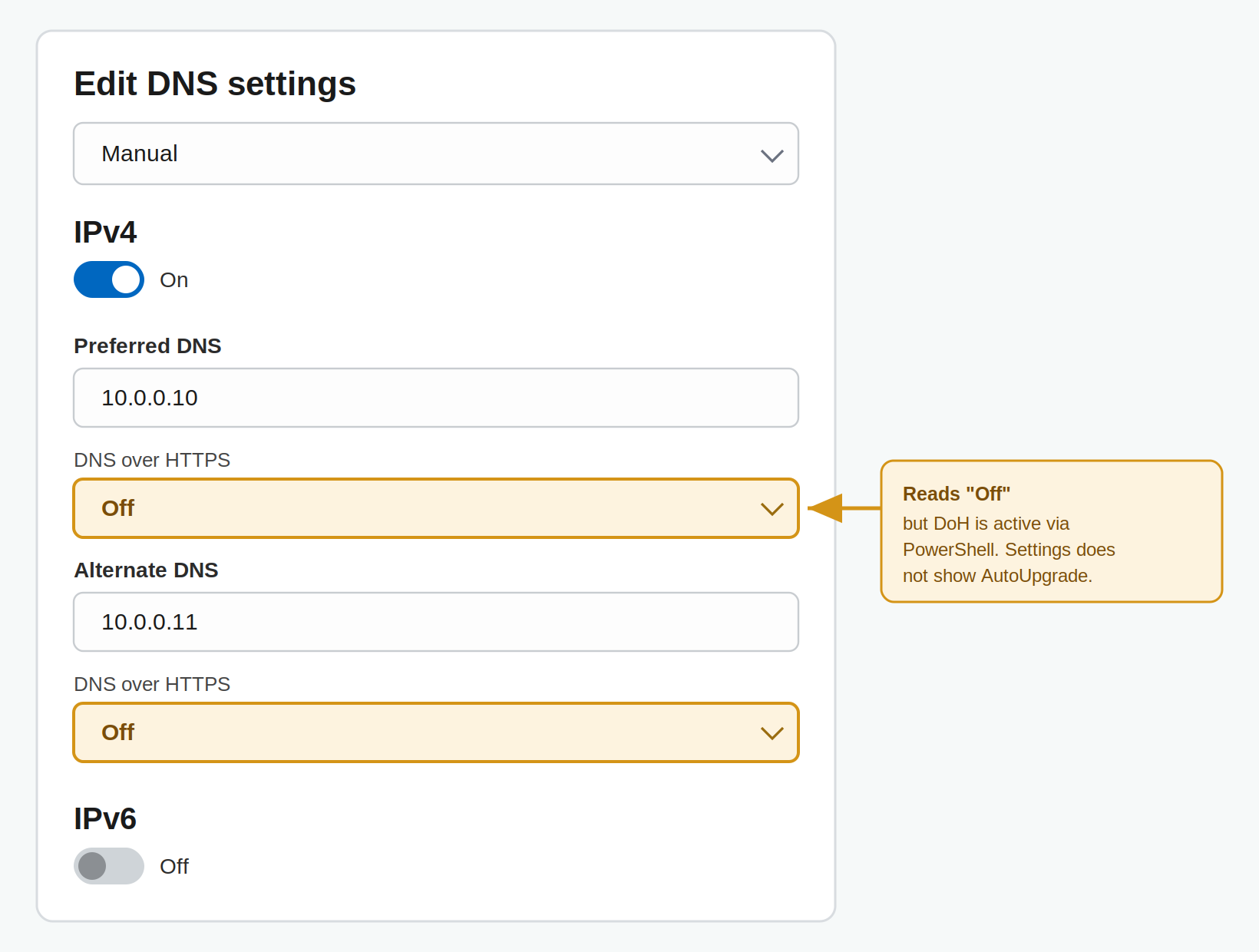
Your instinct will be that it did not work. It did. DoH is running. The Settings app is simply not showing it, and understanding why means knowing that Windows keeps this configuration in two separate places:
- The system-wide known-server table. This is what
Add-DnsClientDohServerAddresswrites to. When an entry hasAutoUpgradeset to True, that entry is what actually upgrades your queries to DoH. This layer does not appear anywhere in the basic Settings view. - The per-adapter dropdown in Settings. This is a separate, GUI-managed setting attached to the network interface. If you configured DoH through PowerShell and never touched this dropdown, it stays on “Off.”
The label you see in Settings reads only the second layer. So it will report “Off” and “Unencrypted” even while the first layer is encrypting every query you send. In the display, the two layers do not know about each other.
To see the layer that is actually in effect, run:
Get-DnsClientDohServerAddress
ServerAddress   AllowFallbackToUdp AutoUpgrade DohTemplate
-------------   ------------------ ----------- -----------
10.0.0.12       True               True        https://dc03.corp.example.com/dns-query
10.0.0.11       True               True        https://dc02.corp.example.com/dns-query
10.0.0.10       True               True        https://dc01.corp.example.com/dns-query
1.1.1.1         False              False       https://cloudflare-dns.com/dns-query
1.0.0.1         False              False       https://cloudflare-dns.com/dns-query
Read it this way: for each of your servers, AutoUpgrade set to True means DoH is active for that server, and AllowFallbackToUdp set to True means it will fall back to plaintext if encryption is unavailable. Those entries are your real configuration. The built-in public resolvers below them sit at False because you never opted them in, which is also why they, and everything else, show as “Unencrypted” in the GUI: that label is tracking the dropdown, not this table.
Here is the proof that these really are two separate stores. If you flip the GUI dropdown from Off to On (automatic template), then run Get-DnsClientDohServerAddress again, the output comes back byte for byte identical. The GUI change does not appear in it at all. That is because this cmdlet reports the global known-server table, while the dropdown writes a separate per-adapter setting that this view never surfaces. So no single view tells you the whole story: this cmdlet shows the global auto-upgrade policy, the Settings page shows a per-adapter preference, and neither one reflects the other.
The only thing that settles it beyond any label is the server-side counter from the previous section. If that counter moves while a client resolves names, DoH is flowing, regardless of what Settings claims.
What each dropdown option means, and what changing it does
Because the dropdown is sitting right there reading “Off,” you will be tempted to change it. Here is exactly what each choice does and how it interacts with the PowerShell table you already set.
The dropdown has three states:
- Off. The per-adapter DoH setting is off. The important part: this does not disable your PowerShell AutoUpgrade entries. With the table configured as above, DoH keeps working even with the dropdown on Off. That gap is the entire source of the confusion.
- On (automatic template). Turns on DoH for the adapter and pulls the template automatically from the known-server list for that server. The template is simply the DoH URL, the
https://server/dns-queryaddress that the server answers encrypted queries on. Use this when the server is already in the known list, which yours are, so Windows can look the URL up for you. - On (manual template). The same, except you type that DoH URL yourself rather than letting Windows find it. Use this for a resolver that is not in the known list, or when you want to pin a specific URL.
When you pick either “On” option, a separate Fallback to plaintext toggle appears, and that toggle is the setting that actually matters:
- Fallback to plaintext on gives you “encrypted preferred.” The client tries DoH and falls back to plaintext if it cannot. This is the safe choice.
- Fallback to plaintext off gives you “encrypted only,” also known as Require DoH. The client refuses to resolve at all if DoH is unavailable.
So if you want the Settings page to stop saying “Off” and instead reflect what is happening, set the dropdown to “On (automatic template)” and leave “Fallback to plaintext” turned on. The summary will then read “Encrypted,” and you will have expressed through the visible layer the same intent the table was already enforcing. Changing the dropdown does not delete your PowerShell entries. The two layers simply agree now instead of appearing to disagree.
The short version
If you remember one thing from this section: the Settings app does not reflect DoH that was configured with PowerShell, and PowerShell does not reflect what you change in Settings. They write to different places and neither shows the other. So pick one method and stay with it. PowerShell is the repeatable, scriptable choice, it is what works cleanly across more than one machine, and it is what I would treat as the source of truth. Whichever you choose, a reading of “Off” or “Unencrypted” in Settings means nothing on its own, Get-DnsClientDohServerAddress shows you the known-server table but not the per-adapter setting, and the server-side counter is the only thing that actually proves encryption is happening. Configure once, deliberately, and verify with the counter rather than chasing the GUI label.
Where the encryption actually sits
It helps to picture the whole resolution chain and mark which legs this change touches.
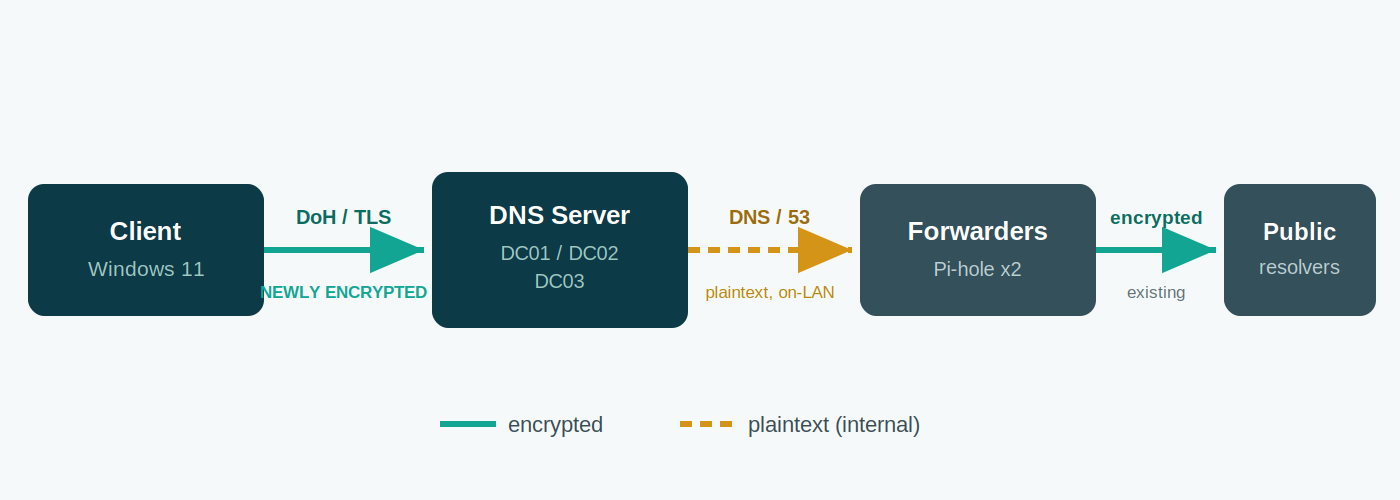
The client-to-server leg is now encrypted and authenticated. The server-to-forwarder leg stays plaintext until Microsoft ships upstream encryption, but in a typical setup that hop never leaves your own switch, and the forwarder-to-internet hop can already be encrypted independently. So this closes the internal leg that was exposed, without touching the parts that were already handled.
Is it worth doing?
Be honest with yourself about the threat model. This is defense in depth on an internal segment. The realistic attacker it stops is one who is already on your LAN, passively reading or tampering with DNS between your clients and your servers. If that is not in your threat model, the security gain is modest.
That said, the cost is genuinely low. If you already run an enterprise CA, the certificate is a one-liner, the enablement is a handful of commands, and the client side is a registration plus a dropdown. It aligns your name resolution with Zero Trust principles, it is hands-on practice with a feature that is brand new to the platform, and it closes a leg that was previously in the clear. For most people running Windows Server 2025 DNS, the answer is yes, with the single firm caveat that you never set Require on a domain-joined client.
Wrapping up
DNS over HTTPS on Windows DNS Server is straightforward to deploy once you sidestep the three traps: the machine-context enrollment that the default template denies, the explicit-server query that hides whether DoH is working, and the Settings page that reports DoH as off when it is on. Get the certificate right, enable it, configure clients to prefer encryption with fallback, and verify with the counter or the analytical events rather than a lookup or a GUI label that could be lying to you. The result is an encrypted, authenticated client-to-resolver path running inside the DNS role you already operate, with no new appliance and no architectural change.


Leave a comment